MForms.ScriptDebugConsole and Excessive Memory Consumption

Yesterday I posted an article (https://potatoit.wordpress.com/2010/10/22/exploring-the-smart-office-visual-tree-%E2%80%93-figuring-out-the-field-names/) on exploring the Visual Tree and how I was encountering and OutOfMemory Exception. I must admit it kinda bugged me all through the night, so much so that instead of my desire to inspect what Smart Office does network wise with Wireshark I spent today investigating.

The traversal of the Visual Tree and outputting some very basic data shouldn’t use much in the way of memory at all, so I wondered if there was something really quirky that I had overlooked in the way jscript handles its garbage collection. My friend google didn’t really show up anything that appeared to be applicable, so it was time to dust off some low level debugging skills.

I’ll qualify this and say that my lower level debugging skills when I don’t have MY source-code amounts to what I have read on Tess Ferrandez blog http://blogs.msdn.com/b/tess/ and of-course Microsoft had their msdn blogs down for maintenance when I was looking up the relevant articles that I needed to load sos.dll (which allows you to debug managed code).

So, I ran Smart Office, loaded Visual Studio 2010 and attached Visual Studio 2010 to the LawsonClient.exe process. I then loaded up BUS100, then ran mforms://jscript and loaded up my little script (see the previously mentioned post).

As per before, about 1.3gig of ram was consumed by LawsonClient.exe after the script had finished, so I paused Smart Office in Visual Studio 2010 and took a crash dump. (I did this as I was struggling to get sos.dll loaded and was missing some of the settings in Visual Studio).

I then resumed Smart Office and closed it and closed Visual Studio 2010. Finally I went out and used Visual Studio to load the crash dump. I was now able to load sos.dll which would allow me to inspect managed objects.

Now I had a sneaking suspicion that this could be related to an issue I noticed a while ago when I was cutting some code which would provide frequent status updates to a textbox. There were literally millions of updates – as it turns out, the TextBox in WPF by default will remember every change and subsequent undo level – so it could have undone hundreds of thousands if not millions of changes, not very handy for a status update, but a lesson learned.

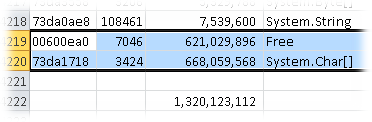
But I digress. One of the really handy commands with sos.dll is the !dumpheap –stat command, this will dump out a summary of object types, the number of those objects and the total amount of RAM consumed by those objects. I dumped these to Excel so I could take a closer look naively expecting to have to do a lot of digging.

Ok, 621meg of RAM consumed by an object called “Free”, how interesting, I wonder what that is.

A little googling revealed this article http://msdn.microsoft.com/en-us/magazine/cc534993.aspx

The relevant section being “Since the LOH is not compacted, sometimes people suspect that the LOH is a source of fragmentation. You really need to first clarify what fragmentation means. There’s fragmentation of the managed heap, which is indicated by the amount of free space between managed objects (in other words, what you see when you do !dumpheap –type Free in SoS);”

Interesting indeed – so potential fragmentation. Ok, now the second line, the almost 670meg of character array objects – wow! Interestingly there is only 3424 of these objects, but they are consuming a huge amount of RAM.

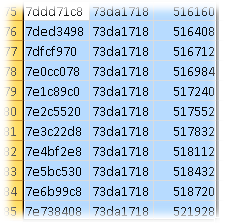
Sos.dll can also dump all of the objects of a certain type and the memory addresses – handily you can then take a look at the memory locations themselves to see what is up. I wanted to take a look at the System.Char[] objects so the command is !dumpheap –type System.Char[]. Again I dumped some of these in to Excel.

The thing of interest in that the size, the third column keeps on incrementing – which kinda smacks of a similar problem that I saw with the WPF TextBox in another project – as a new item is added, the old is removed but remains in RAM.

With that in mind, I decided to test to see if it was a similar issue and I commented out all of the debug.WriteLine() commands – so the code would still iterate through the entire tree, but wouldn’t print out anything to the debug console. And what do you know, not only did the script not crash, but it also didn’t eat silly amounts of RAM.

A little more investigation shows that the debug object is an object from within MForms, specifically MForms.ScriptDebugConsole

So, it looks like something that I need to raise with CASE to see if it is a bug with Smart Office. In the meantime, I’ll look at converting the code so it outputs to a text file or perhaps use the StringBuilder object to combine the information and output it in one hit.

Update 20101122 Lawson have informed me that LSO 9.1.2.3 resolves this issue, I haven’t checked it personally but…

Posted in Development, How Far is Too Far?, M3 / MoveX | Leave a comment

Exploring the Smart Office Visual Tree – Figuring out the Field Names

If you are playing around with WebServices in LWS Designer and the M3 Business Engine, then you will have probably have had some fun trying to figure out which field to choose.

Now there are a couple of things that you can do, you can look at the view definitions (on our AS400 they are in ROOT\QIBM\UserData\mne_data \viewDefinitions\viewDef_1412S\)and dredge through the .xml file looking for something useful or you can take advantage of the Visual Tree. (see: http://msdn.microsoft.com/en-us/library/ms753391.aspx ). As I am interested in seeing how the panels are made up in WPF terms I decided to take a more programmatic approach – it also provides a better context when reading through the Lawson MForms Developers Guide. It also gives me an opportunity to practice programming in jscript and break Smart Office – yes, I killed it a couple of times when I ran my script repeatedly 🙂

So I wrote a function called displayChildren(), it will take an object and use the VisualTreeHelper class to find any children. We will then use reflection to get the “Name” property of the object and we’ll also display the type of object. And to boot, it’s indented depending on how deep within the Visual Tree you are.

So, I mucked around with BUS100 again.

It’s a nice simple program which is ideal to experiment with.

Based on experience with WPF, at a glance I can say that this will comprise of a Grid, Combobox, ListView and within the ListView header there is a StackPanel per column. Within the first columns StackPanel there is a Label and then a TextBox.

Fairly standard sort of stuff.

Now we can look at going up the Visual Tree to the top or we can just work on from the GridView downwards. You can use this code to go upwards and investigate lots of interesting things, but for the moment and for the interest of this discussion we’ll just look at the panel.

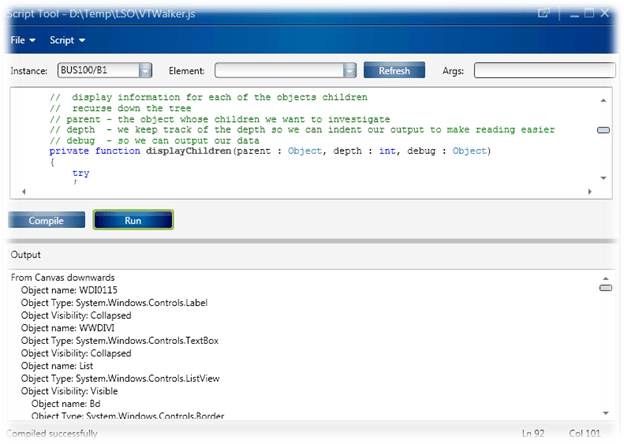
I use the panel as the seed passed to my function displayChildren(). As you can see we have a Label Field which is called WDI0115 which is collapsed, there is also a WWDIVI field which is also Collapsed.

We don’t see the Sorting Order by default because that is at a higher level, if you decide to go from the highest level then expect to get an OutOfMemoryException (Smart Office will ask you to restart). If there are a large number of objects things quickly go south.

1.3gig of RAM seems a tad excessive given we came from 78K 🙂

Interestingly the memory used doesn’t appear to be released back to the system until you close Smart Office (even when you only do from the Grid down).
Still, something to investigate further.

Anyways, here’s the code…


import System;
import System.Windows;
import System.Windows.Controls;
import System.Windows.Media;
import System.Windows.Media.Media3D;
import System.Reflection;
import MForms;

package MForms.JScript {
   class VTWalker {
      public function Init(element: Object, args: Object, controller : Object, debug : Object) 
      {
              // this is a grid that appears on our panel, interestingly it doesn't include some of the higher
              // level controls on the main panel
             var content : Object = controller.RenderEngine.Content;

            // to prove that we are indeed a Grid.
              debug.WriteLine("content object type = " + content.GetType().ToString());
              
              var parent : Object = content;
              var lastParent : Object = content;

              // here we will loop UP the VisualTree seeking the top
              while(null != (parent = VisualTreeHelper.GetParent(parent)))
              {
                  lastParent = parent;
              }
              debug.WriteLine(" ************ ");
              debug.WriteLine(" ************ ");
              debug.WriteLine("From Grid downwards");
              // output the tree from the Grid down, if you want to
              // go from the very highest Parent, then change content to lastParent
              displayChildren(content, 1, debug);
      }
      
      // displayChildren
      //  display information for each of the objects children
      //  recurse down the tree
      // parent - the object whose children we want to investigate
      // depth  - we keep track of the depth so we can indent our output to make reading easier
      // debug  - so we can output our data
      private function displayChildren(parent : Object, depth : int, debug : Object)
      {
              try
              {
                  if(null != parent)
                  {
                      // get the type of our object, we do this
                      // so we can check if the object inherits
                      // from a DependencyObject
                      var parentobjType : Type = parent.GetType();
                      if(parentobjType.IsSubclassOf(DependencyObject) == true)
                      {
                          // loop through the children of this object
                          for(var i=0; i < VisualTreeHelper.GetChildrenCount(parent);i++)
                          {
                              // retrieve the child object
                              var current : Object = VisualTreeHelper.GetChild(parent,i);
                              if(null != current)
                              {
                                  // here we shall deterine the type of the new object
                                  var objType = current.GetType();
                                  // we're looking for the Name property, because
                                  // this is what I am interested in
                                  var objPropertyInfo = objType.GetProperty("Name");
                                  var objPropertyVisible = objType.GetProperty("Visibility");
                                  
                                  // strPadding allows us to indent
                                  var strPadding : String = "";
                                  for(var j = 0; j < (depth * 4); j++)
                                  {
                                      strPadding += " ";
                                  }
                                  
                                  // if objPropertyInfo is null then
                                  // we couldn't find the Name property
                                  if(null != objPropertyInfo)
                                  {
                                      // output the name of the object
                                      debug.WriteLine(strPadding + "Object name: " + objPropertyInfo.GetValue(current));
                                  }
                                  else
                                  {
                                      debug.WriteLine(strPadding + "Object name: Unknown");
                                  }
                                  // output the objects type
                                  debug.WriteLine(strPadding + "Object Type: " + objType.ToString());
                                  
                                  if(null != objPropertyVisible)
                                  {
                                      debug.WriteLine(strPadding + "Object Visibility: " + objPropertyVisible.GetValue(current).ToString());
                                  }
                                  
                                  // does the current object have any children?
                                  if(VisualTreeHelper.GetChildrenCount(current) >= 1)
                                  {
                                      // recurse down
                                      displayChildren(current,depth+1, debug);
                                  }
                              }
                          }
                      }
                  }
              }
              catch(ex)
              {
                  debug.WriteLine("!-! Exception: " + ex.Message + " " + ex.StackTrace);
              }
      }
   }
}
Posted in Development, How Far is Too Far?, M3 / MoveX | Leave a comment

Some Housekeeping

There are a number of posts or examples here which may or may not be smart to put in to production or if you do, pay very careful attention to them when you do an upgrade.

The Lawson documentation is pretty clear that you should only use their documented interfaces in Smart Office – and I can see instances such as the changing the filter values coming unstuck should Lawson change the layout of the ListViews column headers.    I am only doing this out of interest and to learn how the client works.

Where I *think* that there is likely to be issues I will put them under the “How Far is Too Far?” category – but as always, use at your own risk.

Happy hunting! 🙂

Posted in Uncategorized | Leave a comment

APIs – don’t forget to read the fine print!

Well that was an interesting surprise.

As I mentioned in a previous post, we are in the process of migrating from MoveX Apps 5.2 to M3 Apps 10.1 – though I may have made a point of dragging out the versions a little 😉

Credit where credit is due, Smart Office is worlds apart from MoveX Explorer and Workplace – truly a work of art. But, that’s not what this post is about…

In my world

In my world all sorts of odd things happen, code works, people can describe their queries in a sensible and accurate fashion, and APIs remain static.

Sometimes my world and everyone elses worlds are, well…worlds apart.

So, a number of years ago we had the opportunity to take a look at the APIs that were exposed by MoveX, quite a few and many providing useful features. Intentia even provided an API toolkit which included a very helpfuly program called MiTest and another quaint wee thing that generates code that you can use to wrap the APIs.

It is this later mentioned program (StructBuilder I think) which I thought was pretty nifty, sure the code it spat out was VB6, but it was pretty straight forward to migrate in to C# or VB.Net. So, out I go and write some software which makes calls to the APIs, and I take advantage of this tool.

Now for the uninitiated, the Intentia crew did something really quite smart when it came down to the APIs, your application would create a plain text string and send it to the MoveX Business Engine via the MvxSock.dll, and the MoveX Business engine would be kind enough to send back a plain string which you then needed to break down in to it’s appropriate fields.

So, an example is in MRS001MI, you send the string “LstTransactionsOIS100MI” which will go out and list all of the transactions that are available in the OIS100MI interface. MoveX returns the string “REP OIS100MI AddBatchAddressAdd batch order address 71 0 13.145V0T0S200009170948202008072354 12071 ” which then needs to be split in to specific fields – in this instance the “Add batch order address” is a specific field, the description of the Transaction which starts at 40 characters in to the returned string and is 60 characters in length. Each field starts at a specific location and has a specific length, information which is stored in the table CMIFLD or in MRS001.

The beauty in this method is that it is really quick and efficient to process and relatively easy to troubleshoot visually.

The Problem

In my world of bliss with the little wee application that Intentia provided which generated wrappers for the API calls all was great – until I tried a new version of MoveX. Lawson had decided to increase the length of several fields that OIS100MI used, that’s all well and good – until you realise that the code generated that wrapped the API calls is set to look at static locations. So, when we are looking for the Line Number (PONR) returned by AddBatchLine it is at position 16 and is now 5 characters in length rather than 3. This of-course means that the Line Suffix which follows the Line Number (POSX) is now 2 characters out – oh dear, how sad, never mind…

Basically it means that my code needs to be adjusted and then recompiled and then deployed, not so fun.

Confounded by my own Laziness

Now because of the existence of a program which did most of the heavy lifting I never really dug too deeply in to the Library/Program GENERAL or more importantly the Library/Program MRS001MI. It would appear that the Intentia developers had thought recognised that there would be a need to change field lengths and to this end they had an interface specifically designed to provide information about the API field positions (and even a table!).

So really, if you want to be correct and want your code to work in future versions you should at the very least call MRS001MI.LstFields to get the In and Out field positions for the API that you want to use. I guess if you really want to be sure then you should also check that the API (program and transaction) still exists and is at a usable status – again with transactions in MRS001MI.

My Solution

In order to get things moving again, I have written a series of classes for each of the Transactions, they inherit much functionality from a base class which stores a List of field definitions for that specific transaction. The class also allows us to set and retrieve values against a specific field name. The list of fields and their positions get populated on the fly from MRS001MI.

My code has been adjusted so it will use the Field name that is present in the data returned by MRS001MI.ListFields so in theory, as long as mandatory fields don’t change then my code will stand a very good chance of just working; users will be able to flick backwards and forwards between versions when testing without needing separately compiled programs.

Because I am a big fan of LINQ and .Net3.5, the code that I have created is well, LINQ and .Net3.5 based – but if you aren’t using .Net then you should be able to adapt it to suit your purposes. It’s in VB though I will be looking at doing it in C# in the near future and clean it all up too!

To Start with my class mvxAPIField will store information about the field returned by MRS001MI, it will also have an additional field which we can use to store a value.

Public Class mvxAPIField

''' Is this In (I) or Out (O)
Public Property Direction As String

''' the value that we will be submitting
Public Property Value As String

''' the name of the field this is associated with
Public Property FieldName As String

''' the from position
Public Property From As String

''' length of the field
Public Property Length As String

''' The version that this pertains to
Public Property Version As String

''' this is the constructor – to make things easy we can populate the base information from here
''' astrDirection is the direction (I = In, O = Out - ie. In is us submitting to MoveX, O is the result from MoveX)
''' astrFieldName is the name of the field, eg. PONR
''' astrFrom is the position that the field starts at
''' astrLength is the length of the field
''' astrVersion is the version that we are using
Sub New(ByVal astrDirection As String, ByVal astrFieldName As String, ByVal astrFrom As String, ByVal astrLength As String, ByVal astrVersion As String)
 Direction = astrDirection
 FieldName = astrFieldName
 From = astrFrom
 Length = astrLength
 Version = astrVersion
End Sub

''' return the length as a int
Public Function LengthAsInt() As Int32
 Dim result As Int32 = -1

 If Length &lt;&gt; Nothing Then
  If IsNumeric(Length) = True Then
   result = CInt(Length)
  End If
 End If
 LengthAsInt = result
End Function

''' return the From as an int
Public Function FromAsInt() As Int32
 Dim result As Int32 = -1
 If From &lt;&gt; Nothing Then
  If IsNumeric(From) = True Then
   result = CInt(From)
  End If
 End If
 FromAsInt = result
End Function

End Class

Then we have our actual helper class – it groups all of fields together and allows us to generate the string to submit to the API and functions that allow us to decode the results.

Public Class BaseAPIMI

' this is where we will store the fields themselves
Dim lsFields As List(Of mvxAPIField)

' the program name eg. OIS100MI
Public Property ProgramName As String

' the name of the transaction eg. AddBatchHead
Public Property TransactionName As String

' the version that we are playing with
Public Property Version As String = Nothing

''' This is the largest position that we have found (determines the size of the Space() we do)
Dim giMaxPosition As Int32 = 0

''' Create a new Input String to send to MoveX based on the values stored within the lsFields list
Public Function CreateInString(ByVal astrVersion As String) As String
 CreateInString = Nothing

 ' create a big string filled with spaces
 Dim strPopulatedString = Space(giMaxPosition)

 ' set the transaction name
 Mid(strPopulatedString, 1) = TransactionName

 ' retrieve all of the fields for this version that are In fields (ie. fields that we will send to MoveX)
 Dim vFields = From field In lsFields Where field.Version = astrVersion And field.Direction = "I" Select field
  If Not vFields Is Nothing Then
   If Enumerable.Count(vFields) &gt;= 1 Then
    For Each apifCurrentField As mvxAPIField In vFields
     If Not apifCurrentField Is Nothing Then
      Dim iFrom As Int32 = apifCurrentField.FromAsInt()
      Dim iLength As Int32 = apifCurrentField.LengthAsInt()

      ' retrieve the value of the field at a specific location and for a specific length
      Mid(strPopulatedString, iFrom, iLength) = apifCurrentField.Value

     End If
    Next
   End If
  End If
 CreateInString = strPopulatedString
End Function

''' Get a value from a result for a specific fieldname
Public Function GetOutValue(ByVal astrFieldName As String, ByVal astrVersion As String) As String
 GetOutValue = Nothing
 Dim apifField As mvxAPIField = GetOutField(astrFieldName, astrVersion)

 If Not apifField Is Nothing Then
  GetOutValue = apifField.Value
 End If
End Function

' this function will look for a specific fieldname and retrieve the mvxAPIField associated with it
Public Function GetOutField(ByVal astrFieldName As String, ByVal astrVersion As String) As mvxAPIField
 GetOutField = Nothing
 If astrFieldName &lt;&gt; Nothing Then
  If Not lsFields Is Nothing Then
   Dim vField = From field In lsFields Where field.FieldName = astrFieldName And field.Version = astrVersion Select field
   If Not vField Is Nothing Then
    If Enumerable.Count(vField) &gt;= 1 Then
     GetOutField = vField(0)
    End If
   End If
  End If
 End If
End Function

''' Set the value for a specific INPUT field
' when we want to create a string we should use this sub to
' set the values - it will look through our fields looking for
' the appropriate field to set
Public Sub SetInputValue(ByVal astrFieldName As String, ByVal astrValue As String)
 If astrFieldName &lt;&gt; Nothing Then
  If Not lsFields Is Nothing Then
   Dim vField = From field In lsFields Where field.FieldName = astrFieldName Select field
   If Not vField Is Nothing Then
    If Enumerable.Count(vField) &gt;= 1 Then
     For Each apifCurrentField As mvxAPIField In vField
      If Not apifCurrentField Is Nothing Then
       apifCurrentField.Value = astrValue
      End If
     Next
    End If
   End If
  End If
 End If
End Sub

''' interpret the result string
' basically loop through the fields that we have and
' extract the data at each field position from the astrResult
' string and store it in the Value
Public Sub SetResult(ByVal astrResult As String)
 If Not lsFields Is Nothing Then
  If astrResult &lt;&gt; Nothing Then
   For Each apifCurrentField As mvxAPIField In lsFields
    If Not apifCurrentField Is Nothing Then
     If astrResult.Length &gt;= (apifCurrentField.FromAsInt() + apifCurrentField.LengthAsInt()) Then
      Dim strTemporary As String = astrResult.Substring(apifCurrentField.FromAsInt() - 1, apifCurrentField.LengthAsInt())
      If strTemporary &lt;&gt; Nothing Then
       apifCurrentField.Value = strTemporary.Trim()
      End If
     End If
    End If
   Next
  End If
 End If
End Sub

' the constructors requires a list of the fields that were retrieved from MRS001MI
' and then populated in to a list of mvxAPIField objects
' it probably would have been easier to just extract the full results from MRS001MI
' directly in to mvxAPIField but I was pressed for time
Public Sub New(ByVal alsAPIPositions As List(Of mvxAPIField), ByVal astrVersion As String, Optional ByVal astrResult As String = Nothing)
 Version = astrVersion
 lsFields = alsAPIPositions

 ' we want to do a count up to determine the maximum size of our string
 If Not lsFields Is Nothing Then
  For Each apifCurrentField As mvxAPIField In lsFields
   If Not apifCurrentField Is Nothing Then
    Dim iFrom As Int32 = apifCurrentField.FromAsInt()
    Dim iLength As Int32 = apifCurrentField.LengthAsInt()
    If iFrom &lt;&gt; -1 Then
     If iLength &lt;&gt; -1 Then
      If (iFrom + iLength) &gt; giMaxPosition Then
       giMaxPosition = iFrom + iLength
      End If
     End If
    End If
   End If
  Next
 End If
 If astrResult &lt;&gt; Nothing Then
  SetResult(astrResult)
 End If
End Sub

End Class

And finally, overtop of that we have the class which stores the field names – making the code a little bit more readable and clear.

Public Class OIS100_Confirm
 Inherits BaseAPIMI
 Dim lsFields As List(Of mvxAPIField)
 
 Public Sub New(ByVal alsAPIPositions As List(Of mvxAPIField), ByVal astrVersion As String, Optional ByVal astrResult As String = Nothing)
  MyBase.New(alsAPIPositions, astrVersion, astrResult)
  ProgramName = "OIS100MI"
  TransactionName = "Confirm"
End Sub

' I have done this to help make my code more readable (CONO just
' doesn't mean that much to people outside of MoveX)
Public Sub SetCompany(ByVal astrCompany As String)
 SetInputValue("CONO", astrCompany)
End Sub

' if we are sending this to MoveX, then we should try to
' set the Order Number
Public Sub SetOrderNumber(ByVal astrOrderNumber As String)
 SetInputValue("ORNO", astrOrderNumber)
End Sub

' if we are initialised with a result then this will go out and try to extract
' the Order Number (ORNO)
Public Function GetOrderNumber() As String
 GetOrderNumber = GetOutValue("ORNO", Version)
End Function

End Class

And this is the function that will do the setting of the variables and submitting it to MoveX, it’s adapted from the Intentia supplied programs code


   ' Confirm an order that has been submitted via AddBatchHead and is in
   ' OIS275
   ' alsConfirmInfFields should be a list of mvxAPIFields that have been populated from MRS001MI
   Private Function Confirm(byval alsConfirmInFields as List(Of mvxAPIField), byval astrAPIVersion as string, byval astrTemporaryOrderNumber as string, byval astrCompanyNumber)
as string) As String
        Confirm = Nothing
        Dim transStr As String = Nothing
        Dim Result As String = Nothing
        Dim rc As Long

        ' create our handler class and set the fields and version
        Dim conConfirm As New OIS100_Confirm(alsConfirmInFields, astrAPIVersion )
        If Not conConfirm Is Nothing Then
            ' set the company
            conConfirm.SetCompany(astrCompanyNumber)
            ' set the order number we want to confirm
            conConfirm.SetOrderNumber(astrTemporaryOrderNumber)

            ' create the string that we will send to MoveX
            transStr = conConfirm.CreateInString(astrAPIVersion)
        End If

        ' submit to MoveX
        rc = MoveXSocket.MvxSockTrans(transStr, Result)
        If rc <> 0 Then
            MoveXSocket.MvxSockShowLastError("")
            Exit Function
        End If
        If Left(Result, 5) = "REP  " Then
            Do
                'Handle the returned string here
                rc = MoveXSocket.MvxSockReceive(Result)
                If Left(Result, 5) = "NOK   " Then
                    Exit Function
                End If
            Loop Until Left(Result, 5) <> "REP  "
        End If
        ' return our result
        Confirm = Result
    End Function

And this is basically the code which will do the actual confirm.

 ' where ConfirmInFields is a List of mvxAPIFields that we have populated based on the In values for OIS100MI.Confirm from
 ' MRS001MI
 ' Version is the version that we have extracted from GENERAL.GetMIBuild.
 ' astrTemporaryOrderNumber was generated from our AddBatchHead command
 ' astrCompanyNumber was the company number of the order is for
 Dim strConfirmResult As String = Confirm(ConfirmInFields, Version, astrTemporaryOrderNumber, astrCompanyNumber)
  If strConfirmResult <> Nothing Then
   ' if the string starts with OK then we should be all good
   If strConfirmResult.StartsWith("OK") = True Then
    ' create a new OIS100_Confirm object and populate it with the OutFields we have populated from
    ' MRS001MI
    ' set the version
    ' and supply the result string we got when we submitted the confirm to MoveX
    Dim conConfirmResult As New OIS100_Confirm(ConfirmOutFields, Version, strConfirmResult)
     If Not conConfirmResult Is Nothing Then
      ' and finally we extract the order number
      Dim strOrderNumber As String = conConfirmResult.GetOrderNumber()
     End If
    End If
   End If
  End If

The code to extract the fields from MRS001MI are missing, but if you have had any experience with the APIs it should be fairly trivial for you to create – unfortunately due to the structure of my existing application there is a lot of interdependencies on other code making it difficult to extract for the purposes of illustration. Though in saying that I do plan on restructuring my code in the near future so may include it in a future post.

Anyways, I hope that this gives others a bit of a heads up or that the code is of some use to reduce compatibility problems in the future…

Posted in Development, M3 / MoveX | 7 Comments

EFT, MoveX APIs, More Reflection, Windows, Events and Classes

We’re in the process of going from MoveX V12 Java, SP16 fix pack6, Foundation 7.1, Apps 5.2 to M3 V14, or 10.1 and 10.1 offers us a lot of opportunities through Smart Office and WebServices.

One of the issues that caused a lot of grief has been the APIs in MoveX V12 are very weak, they often get 60% of the way to achieving a goal but then don’t have the other core 40% of functionality there so you end up having to take a hybrid approach of direct SQL reads and APIs and using MoveX Explorer.  Or worse still, you have a situation where the API functionality doesn’t honour all of the rules that the client does so you end up with inconsistent behaviour.

As most of you have no-doubt experienced, ERP solutions though great, often leave these little holes or gaps that your organisation needs to fill – this can’t be solved with MoveX alone.  One of these gaps for us was EFT processing, in short creating a file of payments to suppliers that we upload to our bank for electronic payment.

The Lawson solution was to use MeC, and it is a horrible, horrible solution.  MeC is over complicated and can get so severely screwed up with timing issues when it comes to payments that you have to adjust your process to work around the shortcomings – increasing workload and increasing the chances that your Accounts Payable staff can make a mistake, that’s before we get in to the arcane setup you need to go through and the consulting in-experience in this end of the world.  Don’t get me wrong, I’m sure MeC has its place, but for us, it was like using an industrial power drill to hammer in a tac.

So for us I wrote a little .Net application that did away with the MeC side of the equation, it would use the APIs CRS692MI and APS130MI along with several SQL statements to extract a payment proposal, the payment proposals items and the bank account details and finally handle the deletion of the payment proposal.

In the upgrade it looks like something has changed around the functionality in APS130MI and it proposal deletion function which prevents it from working correctly (takes the proposal to status 4 indefinitely, an issue we are logging with Lawson).  Which prompted me to consider, instead of using an external application, why not just create a jscript within Smart Office – the user will just highlight the proposal and click on the “Generate EFT” button and it will spit out a file which can then be uploaded – no more nonsense with APIs, additional user logins, SQL requirements and additional programs.

A jscript for generating the EFTs?  Conceptually, very straight forward, the EFT program really consists of several loops and a function that spits out a file in the right format, can’t really get much easier.  However, it requires usage of classes, properties, may use a window to display information and need to capture some of the events from the new window; things that I haven’t had any experience with in a jscript world.

So, I decided that I would clean up my earlier code around reflection, have it so it is displayed in a ListView (so I can use binding to make life easier) on a newly opened Window and set it up so you could select a property and then open a new window and show the selected objects info to give me a better idea of design for the EFTs.

Defining Classes

Well, this part is pretty simple, when we use the mforms://jscript editor and go New it creates the package and the class for us, so we have a framework to work with.  But can we just define another class within the one package?  Can we include a class within a class, what happens when we do that?  Yes, yes and not a lot J

To start with I created a very basic class, it has a couple of variables and a constructor.  It is the class that we will be using to store the information about each piece of information we find when we do a discovery on an object.

        public class extMemberInfo
	{
		var Name : String;
		var MemberType : String;
		var DeclaringType : String;
		var Module : String;
		var ReflectedType : String;
		
		var Value : String;

		// this is the constructor for the object, here we set all the values
		function extMemberInfo(aName, aMemberType, aDeclaringType, aModule, aReflectedType, aValue)
		{
			this.Name = aName;
			this.MemberType = aMemberType;
			this.DeclaringType = aDeclaringType;
			this.Module = aModule;
			this.ReflectedType = aReflectedType;
			this.Value = aValue;
		}

	}


As you can see, not a lot to it, for the sake of experimentation and I do like type safety, I’ve set the data type of the variables, I defined a constructor so we could easily create and initialise the object in a single hit.  After spending a lot of time in a type safe world and my unconditional love of properties I wondered if properties were supported within jscript, this little project was going to need properties that I could bind the ListView columns too.

      public class extMemberInfo
       {
              private var pri_Name : String;
              private var pri_MemberType : String;
              private var pri_DeclaringType : String;
              private var pri_Module : String;
              private var pri_ReflectedType : String;

              private var pri_Value : String;

              // this effectively presents itself as a Property
              // Binding will only work on properties

              // retrieve the MemberType
              function get MemberType() : String
              {
                     return this.pri_MemberType;
              }

              // retrieve the DeclaringType
              function get DeclaringType() : String
              {
                     return this.pri_DeclaringType;
              }

              // retrieve the Module
              function get Module() : String
              {
                     return this.pri_Module;
              }

              // retrieve the ReflectedType
              function get ReflectedType() : String
              {
                     return this.pri_ReflectedType;
              }

              // retrieve the Value
              function get Value() : String
              {
                     return this.pri_Value;
              }

              // retrieve the Name
              function get Name() : String
              {
                     return this.pri_Name;
              }             

              // this is the constructor for the object, here we set all the values
              function extMemberInfo(aName, aMemberType, aDeclaringType, aModule, aReflectedType, aValue)
              {
                     this.pri_Name = aName;
                     this.pri_MemberType = aMemberType;
                     this.pri_DeclaringType = aDeclaringType;
                     this.pri_Module = aModule;
                     this.pri_ReflectedType = aReflectedType;
                     this.pri_Value = aValue;
              }
       }

Here we set our variables to private, so no functions outside of this class should be able to change their values.  The only way for the values to change is when you construct the object, and this will suit our purposes quite nicely.

The new parts that we have are is:

function get Name() : String

Quite simply, it is defining a function which is presented as a property, using the keyword get or set allows you to get or set a value as if it were a property.  Name() is the name of the property, and : String says that this is going to return a String.

return this.pri_Name;

Will then return the value stored in pri_Name

Given we are effectively replicating many of the values in the MemberInfo class that we use to populate this object, we could have probably looked at inheritance, but that’s for another day to look in to.

Ok, so now we have a class which will store our values and supports properties so we can bind our columns to it.

Assemblies

In order to use reflection and some of the methods that I use we need to include other assemblies.

import System;       // Environment class, allows us to use Environment.NewLine
import System.ComponentModel;
import System.Windows.Input;
// we need System.Reflection so we can inspect the objects
import System.Reflection;
import System.Windows;
import System.Windows.Controls;
import MForms;
import Mango.UI.Core;
import Mango.UI.Core.Util;
import Mango.UI.Services;

Most of these are already defined when you create a new jscript within the Smart Office editor.

Incidently, if you want to take a look at the assembles that Lawson provide, then you can use the Visual Studio Object Browser.  The filename of the assemblies typically is the name of the Assembly with a .dll appended to the end (eg. Mango.UI.Core.dll), these are stored in the directory that the ClickOnce deployment dropped Smart Office in to, usually <user profile>\AppData\Local\2.0\<random name>\<random name>\<crytic GUID>\, basically I do a search in the AppData directory for Mango and it will show up the assemblies, in my case:

“C:\Users\Scott\AppData\Local\Apps\2.0\LQK5EE90.NZQ\9P7DMX0R.92Q\http..tion_3eefdc12643b7dbb_0009.0001_0654d9605bc969c8\Mango.Core.dll”
“C:\Users\Scott\AppData\Local\Apps\2.0\LQK5EE90.NZQ\9P7DMX0R.92Q\http..tion_3eefdc12643b7dbb_0009.0001_0654d9605bc969c8\Mango.Skin.dll”
“C:\Users\Scott\AppData\Local\Apps\2.0\LQK5EE90.NZQ\9P7DMX0R.92Q\http..tion_3eefdc12643b7dbb_0009.0001_0654d9605bc969c8\Mango.UI.dll”
“C:\Users\Scott\AppData\Local\Apps\2.0\LQK5EE90.NZQ\9P7DMX0R.92Q\http..tion_3eefdc12643b7dbb_0009.0001_0654d9605bc969c8\MangoChart.Core.dll”
“C:\Users\Scott\AppData\Local\Apps\2.0\LQK5EE90.NZQ\9P7DMX0R.92Q\mang..core_9759cb56e4efc0a2_0009.0001_none_1ff9594031846a9b\MangoChart.Core.dll”

Events

Now events caused me a lot of problems within this little project, you look at the Lawson provided examples and it makes event handling look so much more simpler than in the big boy programming languages J

Events cannot be created within jscript L, however you can subscribe to existing events.  You need to find out what the event is called for an object and then call <object>.add_<eventname>(<event handling function>) and a call will need to be made later to unsubscribe from the event, this follows a similar format <object>.remove_<eventname>(<event handling function>)

Turns out that they can be very challenging, especially within Smart Office.  I found that timing can be everything between hoses your Smart Office instance and it working flawlessly, that you have be pay very special attention to cleaning up resources and getting handlers of events arguments 100% correct – even then, I couldn’t for the life of my get the MouseDoubleClick event to fire in my ListView so resorted to SelectionChanged events.

In my situation I ended up adding event handlers that would listen for the closing of our window and the loaded event.  Within the loaded event I would then add a handler to listen for SelectionChanged events against the ListView.  Because this was such a problematic area I ended up leaving the event registration within the loaded event.

public function OnReflectionWindowLoaded(sender: Object, e: RoutedEventArgs)
{
	try
	{
		// ensure that we have a ListView object to attach to
		if(null != wndReflectionWindow.lvListView)
		{
			// do the actual attach
			wndReflectionWindow.lvListView.add_SelectionChanged(OnSelectionChange);
			// if no exception was generated, then set a
			// flag so we know we did infact attach and will
// need to eventually dispose of the attachment
			wndReflectionWindow.bListViewMouseDoubleClickAdded = true;
		}
	}
	catch(ex)
	{
		MessageBox.Show("Exception adding MouseDoubleClick to ListView: " + ex.Message + Environment.NewLine + ex.StackTrace);
	}
}

public function OnSelectionChange(sender: Object, e:  SelectionChangedEventArgs)
{
	// do something really fancy
}

So when our Windows Loaded event is fired (basically once everything has been initialised), we attach a handler to our ListView looking for any SelectionChanged events, if there is one then the OnSelectionChange function will be called.  It is absolutely critical to get the type correct for the EventArgs, odd things happen within Smart Office ranging from cryptic compile errors to bizzare crashes if you don’t.

It helps to refer to the library at http://msdn.microsoft.com has a lot of information on events and the args types, unfortunately the jscript examples are almost non-existant.

The Code

The moment you’ve been waiting for, the code.  I was testing this against BUS100, so if you want to test this directly in your TEST environment, in Smart Office run BUS100 and then load the jscript editor and paste in the code.  I’ve added a lot of comments in here to explain what is happening.  In my example I use the Lawson ListView as the object I will examine.

There is a lot of ways that this could be expanded.  I’ve created a ReflectionWindow class to hold some common values and in the knowledge that one day I will add code to allow us to open multiple windows at a time and recurse through objects.

If you want to get information on property from the first opened ListView, then hold down the Alt key and then select the property you want to inspect.  A new window will open (oddly UNDER the main listview window).

Also NOTE that when-ever I selected any of the Lawson objects the script would get in to a mess, not sure why but it basically meant a restart of Smart Office to get things running again.

import System;	// Environment class
import System.ComponentModel;
import System.Windows.Input;
// we need System.Reflection so we can inspect the objects
import System.Reflection;
import System.Windows;
import System.Windows.Controls;

import MForms;
import Mango.UI.Core;
import Mango.UI.Core.Util;
import Mango.UI.Services;

package MForms.JScript {
   class bus100s
   {
		var debug, button, content, lv, listControl;
		
		var wndReflectionWindow : ReflectionWindow;
		
		public function Init(element: Object, args: Object,controller : Object, debug : Object) 
		{
			content = controller.RenderEngine.Content;
			listControl = controller.RenderEngine.ListControl;
			lv = listControl.ListView;
			
			button = new Button();
			button.Content = "Inspect";

			Grid.SetColumnSpan(button, 10);
			Grid.SetColumn(button, 0);
			Grid.SetRow(button, 1);
			content.Children.Add(button);
			button.add_Click(OnClick);
			button.add_Unloaded(OnUnloaded);
			wndReflectionWindow = null;
		}
		
		public function OnClick(sender: Object, e: RoutedEventArgs) 
		{
			try
			{
				if(null != wndReflectionWindow)
				{
					MessageBox.Show("wndReflectionWindow not null");
				}
				// we are just going to inspect the listview
				// you can point this at any object to take a look
				addWindow(lv, false);
			}
			catch(ex)
			{
				MessageBox.Show("Exception: " + ex.Message + Environment.NewLine + ex.StackTrace);
			}
		}

		public function OnUnloaded(sender: Object, e: RoutedEventArgs) 
		{
			// the window has been unloaded, time to clean up
			try
			{
				// if we have the wndReflectionWindow
				// look at closing it so we are totally
				// cleaned up
				if(null != wndReflectionWindow)
				{
					if(null != wndReflectionWindow.wndWindow)
					{
						wndReflectionWindow.wndWindow.Close();
					}
				}
				
				// remove the event handlers that we added
				button.remove_Click(OnClick);
				button.remove_Unloaded(OnUnloaded);
			}
			catch(ex)
			{
				MessageBox.Show("Exception: " + ex.Message + Environment.NewLine + ex.StackTrace);
			}
		}

		public function OnReflectionWindowLoaded(sender: Object, e: RoutedEventArgs)
		{
			try
			{
				if(null != wndReflectionWindow.lvListView)
				{
					// subscribe to the SelectionChanged event, call OnSelectionChange()
					wndReflectionWindow.lvListView.add_SelectionChanged(OnSelectionChange);
					wndReflectionWindow.bListViewMouseDoubleClickAdded = true;
				}
			}
			catch(ex)
			{
				MessageBox.Show("Exception adding MouseDoubleClick to ListView: " + ex.Message + Environment.NewLine + ex.StackTrace);
			}
		}

		public function OnReflectionWindowClose(sender: Object, e: CancelEventArgs)
		{
			try
			{
				if(null != wndReflectionWindow)
				{
					if(null != wndReflectionWindow.lvListView)
					{
						if(true == wndReflectionWindow.bListViewMouseDoubleClickAdded)
						{
							// remove our subscription to the SelectionChanged
							// event
							wndReflectionWindow.lvListView.remove_SelectionChanged(OnSelectionChange);
						}
					}
					if(null != wndReflectionWindow.wndWindow)
					{
						// remove other subscribed events
						wndReflectionWindow.wndWindow.remove_Loaded(OnReflectionWindowLoaded);
						wndReflectionWindow.wndWindow.remove_Closing(OnReflectionWindowClose);
					}
					
				}
			}
			catch(ex)
			{
				MessageBox.Show("Exception: " + ex.Message + Environment.NewLine + ex.StackTrace);
			}
			// set to null so by rights the garbage collector
			// will see there are no more objects connected and clean up
			wndReflectionWindow = null;
		}

		public function OnSelectionChange(sender: Object, e:  SelectionChangedEventArgs) 
		{
			try
			{
				// if the user holds down the Alt key when the change their
// selection on a property we will open a new window displaying
// that objects properties
				if(Keyboard.Modifiers == ModifierKeys.Alt)
				{
// only look at the first selected object
					if(e.AddedItems.Count &gt;= 1)
					{
						var emiExtendedMemberInfo = e.AddedItems[0];
						if(null != emiExtendedMemberInfo)
						{
// we can only examine properties
							if(String.Compare("Property", emiExtendedMemberInfo.MemberType) == 0)
							{
								var piPropertyInfo = wndReflectionWindow.wndWindow.Tag.GetType().GetProperty(emiExtendedMemberInfo.Name);
								if(null != piPropertyInfo)
								{
									var objPropertyValue = piPropertyInfo.GetValue(wndReflectionWindow.wndWindow.Tag, null);
									if(null != objPropertyValue)
									{
// call a new window with the value of the selected
										// object
										addWindow(objPropertyValue, true);
									}
								}
							}
						}
					}
				}
			}
			catch(ex)
			{
				MessageBox.Show("Exception: " + ex.Message + Environment.NewLine + ex.StackTrace);
			}
		}
		
		// addWindow - this function will use reflect to look at
		//  an object and maybe give us some clues about that the
		//  object does.   It will open a new window with information
		//  about the various properties, methods etc that are
		//  exposed
		// objCurr = the object that we want to inspect
		private function addWindow(objCurr: Object, bNoEvents: boolean)
		{
			// wrap the function in a try...catch(), let us handle
			// the errors rather than having Smart Office get upset
			try
			{
				// create a new window which we will show to the user
				var wndWindow = new Window();
				if(null != wndWindow)
				{

					if(false == bNoEvents)
					{
						wndReflectionWindow = new ReflectionWindow();
						wndReflectionWindow.wndWindow = wndWindow;
						
						wndReflectionWindow.wndWindow.add_Loaded(OnReflectionWindowLoaded);
						wndReflectionWindow.wndWindow.add_Closing(OnReflectionWindowClose);
					}

					// store the object that we are looking at so we can do further analysis if the user desires
					wndWindow.Tag = objCurr;
					// set the Window Height to 600
					wndWindow.Height = 600;
					// create a StackPanel, this makes it a little easier
					// with control placement in the window
					var spStackPanel = new StackPanel();
					if(null != spStackPanel)
					{
						// StackPanel should be vertical!
						spStackPanel.Orientation = System.Windows.Controls.Orientation.Vertical;
						
						// Create a Textbox that we will use to display
						// the type of the object that we are inspecting
						var tbTextBox = new TextBox();
						if(null != tbTextBox)
						{
							// it is set to ReadOnly
							tbTextBox.IsReadOnly = true;
							
							// add TextBox to the StackPanel
							spStackPanel.Children.Add(tbTextBox);
							
							// set the type of the object
							// we are inspecting to the TextBox
							tbTextBox.Text = objCurr.GetType().ToString();
							
							// finally go out and create the ListView
							// that will display everything
							var lvListView : ListView = createListView();
							if(null != lvListView)
							{
								if(false == bNoEvents)
								{
									wndReflectionWindow.lvListView = lvListView;
								}
								
								var miMemberInfo;
								var mtType;
								mtType = objCurr.GetType();
								// retrieve the members from the object type
								// it is this list that we will iterate through
								// and display
								miMemberInfo = mtType.GetMembers();
								
								// for some reason the for(var miCurrentMember in miMemberInfo) didn't work, resorted to a more traditional loop
								for(var i = 0; i &lt; miMemberInfo.Length-1;i++)
								{
									var miCurrentMember = miMemberInfo[i];
									var emiNewMember;
									var strPropertyValue : String = &quot;N/A&quot;;	// only Properties will have values, everything else we will display as &quot;N/A&quot;
									var piPropertyInfo : PropertyInfo;

									// if we are a property then we should look at getting the value										
									if(MemberTypes.Property == miCurrentMember.MemberType)
									{
										piPropertyInfo = objCurr.GetType().GetProperty(miCurrentMember.Name);
										if(null != piPropertyInfo)
										{
											strPropertyValue = piPropertyInfo.GetValue(objCurr, null);
										}
									}
									
									// create a new extMemberInfo object, this object effectively stores the pertinent information we want to look at
									emiNewMember = new extMemberInfo(miCurrentMember.Name, miCurrentMember.MemberType, miCurrentMember.DeclaringType, miCurrentMember.Module, miCurrentMember.ReflectedType, strPropertyValue);

									if(null != emiNewMember)
									{
										// add our entry to the ListView
										lvListView.Items.Add(emiNewMember);
									}

								}
								// add the ListView to the StackPanel
								spStackPanel.Children.Add(lvListView);

							}
						}
						// add the StackPanel to the Window
						wndWindow.Content = spStackPanel;
												
						// and last but not least, show the Window
						wndWindow.Show();
					}
				}
			}
			catch(ex)
			{
				MessageBox.Show(&quot;Exception: &quot; + ex.Message + &quot; &quot; + ex.StackTrace);
			}
		}


		// create our ListView with specific columns
		private function createListView() : ListView
		{
			var result : ListView = null;
			try
			{
				var lvListView = new ListView();
				if(null != lvListView)
				{
					var gvGridView = new GridView();
					lvListView.Height = 500;

					if(null != gvGridView)
					{
						lvListView.View = gvGridView;
						
				// create a new column and bind it to 
				// the Name property
		            	var gvcName = new GridViewColumn();
		            	gvcName.DisplayMemberBinding = new System.Windows.Data.Binding(&quot;Name&quot;);
		            	gvcName.Header = &quot;Name&quot;;
		            	gvcName.Width = 100;
		            	gvGridView.Columns.Add(gvcName);
		
				// create a new column and bind it to 
				// the MemberType property
		            	var gvcMemberType = new GridViewColumn();
		            	gvcMemberType.DisplayMemberBinding = new System.Windows.Data.Binding(&quot;MemberType&quot;);
		            	gvcMemberType.Header = &quot;MemberType&quot;;
		            	gvcMemberType.Width = 100;
		            	gvGridView.Columns.Add(gvcMemberType);

		            	var gvcDeclaringType = new GridViewColumn();
		            	gvcDeclaringType.DisplayMemberBinding = new System.Windows.Data.Binding(&quot;DeclaringType&quot;);
		            	gvcDeclaringType.Header = &quot;DeclaringType&quot;;
		            	gvcDeclaringType.Width = 100;
		            	gvGridView.Columns.Add(gvcDeclaringType);

		            	var gvcModule = new GridViewColumn();
		            	gvcModule.DisplayMemberBinding = new System.Windows.Data.Binding(&quot;Module&quot;);
		            	gvcModule.Header = &quot;Module&quot;;
		            	gvcModule.Width = 100;
		            	gvGridView.Columns.Add(gvcModule);
														
		            	var gvcReflectedType = new GridViewColumn();
		            	gvcReflectedType.DisplayMemberBinding = new System.Windows.Data.Binding(&quot;ReflectedType&quot;);
		            	gvcReflectedType.Header = &quot;ReflectedType&quot;;
		            	gvcReflectedType.Width = 100;
		            	gvGridView.Columns.Add(gvcReflectedType);

		            	var gvcValue = new GridViewColumn();
		            	gvcValue.DisplayMemberBinding = new System.Windows.Data.Binding(&quot;Value&quot;);
		            	gvcValue.Header = &quot;Value&quot;;
		            	gvcValue.Width = 100;
		            	gvGridView.Columns.Add(gvcValue);
		            	
		            	result = lvListView;
	            	}
            	}
			}
			catch(ex)
			{
				MessageBox.Show(&quot;Exception: &quot; + ex.Message + Environment.NewLine + ex.StackTrace);
			}
			return result;
		}
	}
		
	// this is a new class that we will store information that will be displayed by the
	// ListView
	// this could probably be done through inheritance, but
	// this is for the purposes of exploring what is supported
	// by the Lawson implementation of jscript
	// - there were a number of issues around this, effectively managing
	//   to get things presented as properties
   	public class extMemberInfo
	{
		private var pri_Name : String;
		private var pri_MemberType : String;
		private var pri_DeclaringType : String;
		private var pri_Module : String;
		private var pri_ReflectedType : String;
		
		private var pri_Value : String;

		// this effectively presents itself as a Property
		// Binding will only work on properties
		
		// retrieve the MemberType
		function get MemberType() : String
		{
			return this.pri_MemberType;
		}
		
		// retrieve the DeclaringType
		function get DeclaringType() : String
		{
			return this.pri_DeclaringType;
		}
		
		// retrieve the Module
		function get Module() : String
		{
			return this.pri_Module;
		}
		
		// retrieve the ReflectedType
		function get ReflectedType() : String
		{
			return this.pri_ReflectedType;
		}
		
		// retrieve the Value
		function get Value() : String
		{
			return this.pri_Value;
		}
		
		// retrieve the Name
		function get Name() : String
		{
			return this.pri_Name;
		}		
						
		// this is the constructor for the object, here we set all the values
		function extMemberInfo(aName, aMemberType, aDeclaringType, aModule, aReflectedType, aValue)
		{
			this.pri_Name = aName;
			this.pri_MemberType = aMemberType;
			this.pri_DeclaringType = aDeclaringType;
			this.pri_Module = aModule;
			this.pri_ReflectedType = aReflectedType;
			this.pri_Value = aValue;
		}
	}
		
	// this class is a common place holder
	// we can look at supporting deeper recursion
	// and multiple window support in the futre
	public class ReflectionWindow
	{
		var wndWindow;
		var lvListView;
		
		var bListViewMouseDoubleClickAdded = false;
	}
  
}

And that’s it.  Given the code above runs through almost all of the concepts I need with the EFTs (except for writing to files and web-services), then I hope to convert my EFT code in to jscript over the next couple of weekends and post it here.

Update 20101122 As it turns out, the priority of the source code has been reduced as Lawson provided a fix before we went live on 10.1, see fix JT-185102

Posted in Development, How Far is Too Far?, M3 / MoveX | 6 Comments

Manipulating Smart Office Column Header Filter Values

[updated the formatting of the code]
I saw an interesting question raised about manipulating the values in the Column Headers of a ListView within Smart Office, can it be done. Well, after playing around with Reflect and Smart Office I figured it could as all of the properties can be happily reflected.

Anyway, the program in question was: CRS610 and following is the code, the code is fairly rough, but functional. (I’ve left the MessageBox.Show() calls in there to illustrate what the objects are)

import System.Windows;
import System.Windows.Controls;
import MForms;
import Mango.UI.Core;
import Mango.UI.Core.Util;
import Mango.UI.Services;

package MForms.JScript {

class TestControl
{
 var debug, button, content, win, lv, listControl;
 var click;
 public function Init(element: Object, args: Object,controller : Object, debug : Object)
 {
  // control = controller;
  content = controller.RenderEngine.Content;
  listControl = controller.RenderEngine.ListControl;
  lv = listControl.ListView;
  button = new Button();
  button.Content = "Inject";

  Grid.SetColumnSpan(button, 10);
  Grid.SetColumn(button, 0);
  Grid.SetRow(button, 1);
  content.Children.Add(button);
  button.add_Click(OnClick);
  button.add_Unloaded(OnUnloaded);

  click = false;
 }

 public function OnClick(sender: Object, e: RoutedEventArgs)
 {
  var columns = lv.Columns;
  var gvGridView = lv.View;

  try
  {
   if(null != gvGridView)
   {
    MessageBox.Show("We have a GridView");
    var strColumnText;
    for(var i=0; i < gvGridView.Columns.Count; i++) // loop through the columns
    {
     if(null != gvGridView.Columns[i].Header) // verify we don't have a null
     {
      MessageBox.Show(gvGridView.Columns[i].ToString());    // show the type of the object
      try
      {
        MessageBox.Show(gvGridView.Columns[i].Header.ToString());    // show the type of the object
        MessageBox.Show(gvGridView.Columns[i].Header.Content.ToString());    // show the type of the object

        if(i <= 2) // I do this so we only change the values of the first two columns
        {

    // we know that we have a TextBox and that the Text property contains the value, so we set it to whatever we desire
         gvGridView.Columns[i].Header.Content.Children[1].Text = "Potato";
        }
       }
       catch(ex)
       {
        MessageBox.Show("Exception: " + ex.Message);
       }
      }
     }
    }
   }
   catch(ex)
   {
    MessageBox.Show("Exception: " + ex.Message);
   }
 }

  public function OnUnloaded(sender: Object, e: RoutedEventArgs)
  {
   button.remove_Click(OnClick);
   button.remove_Unloaded(OnUnloaded);
  }
 }
}
Posted in Development, M3 / MoveX | 3 Comments

Buttons and Smart Office

One of the things that I have found, not being a ‘professional’ developer is that often I get tripped up by the idiosyncrasies of the tools. It’s probably worth noting that these are just my experiences and aren’t necessarily correct J

Smart Office and jscripts was certainly no exception. The issue comes down to my inclination to work iteratively on projects. Develop the basic framework, test, add some more basic code, test, add more code, test and so on. A process that got me tripped up with some inconsistent results.

The task that I needed to complete was, add a button to MWS420, this button would call Related Option 11 (which takes the user to MWS422). Then add a button to MWS422 for Related Option 11.

It should be easy you’d think, but what I have previously mentioned it became rather challenging as sometimes the code in Smart Office would become ‘disassociated’ with the panel I was working with, or partially ‘corrupt’ when I was iterating through my changes giving me somewhat odd results. Coming from a world of Microsoft Visual Studio I would expect that when I compile and then run a script, I would always be running only the latest of changes – this is not the case.

So anyway, the task at hand, very easy once you know what you are doing.

import System;

import System.Windows;

import System.Windows.Controls;

import MForms;

import Mango.UI.Core;

import Mango.UI.Core.Util;

import Mango.UI.Services;

package MForms.JScript

{

class MWS420_SelectOrder

{

var debug, button, content, gcontroller;

public function Init(element: Object, args: Object, controller : Object, debug : Object)

{

this.gcontroller = controller;


content = controller.RenderEngine.Content;


button = new Button();

button.Content = “Select Order”;

Grid.SetColumnSpan(button, 10);

Grid.SetColumn(button, 10);

Grid.SetRow(button, 6);

content.Children.Add(button);

button.add_Click(OnClick);

button.add_Unloaded(OnUnloaded);

}


// We will use the interactive launching of the Normal Option

private function listOptionNormal()

{

try

{

if(null != gcontroller)

{

gcontroller.ListOption(“11”);

}

else

{

MessageBox.Show(“Controller Class not initiated”);

}

}

catch(ex)

{

MessageBox.Show(“Exception: “ + ex.Message);

}

}


public function OnClick(sender: Object, e: RoutedEventArgs)

{

listOptionNormal();

}

public function OnUnloaded(sender: Object, e: RoutedEventArgs)

{

button.remove_Click(OnClick);

button.remove_Unloaded(OnUnloaded);

}

}

}

There is another method to invoking the functions, and that is through the Automation, though it looks like the automation creates new instances, and doesn’t retain a relationship to originating caller which means that it is of no use to us, but I have included the code for the sake of interest.

// Use Automation to fire Option 11 in MWS420.

// Automation will not run in the same instance, it will create a new instance

private function listOptionThroughAutomation()

{

// we try {} catch() {} in order to allow us to gracefully handle errors

try

{

// create a new MFormsAutomation object

var mfaAutomation = new MFormsAutomation();

if(null != mfaAutomation)

{

// in our first step we run MWS420 as we can’t directly run

// MWS422

mfaAutomation.AddStep(ActionType.Run,“MWS420”);

// mfaAutomation.AddStep(ActionType.Key,”ENTER”);

mfaAutomation.AddStep(ActionType.ListOption,“11”);

var uri = mfaAutomation.ToUri();

//MessageBox.Show(uri);

DashboardTaskService.Manager.LaunchTask(new Task(uri));

}

else

{

MessageBox.Show(“Failed to create MFormsAutomation class”);

}

}

catch(ex)

{

MessageBox.Show(“Exception: “ + ex.Message);

}

}

Posted in Development, M3 / MoveX | 1 Comment

Reflection and Trying to Figure Out What is Exposed

Updated to clean up formatting of code

So, I was struggling to find the property in the ListViewItem to get the contents of a particular column.

Queue Reflection.

I wrote a quick little function which will iterate through an object and display a message box with the methods and properties that object has.

import System.Reflection;

public function displayMemeberInfo(objCurr: Object)
{
 try
 {
  if(null != objCurr)
  {
   var myMemberInfo : MemberInfo[]; var myType, str;
   myType = objCurr.GetType();
   myMemberInfo = myType.GetMembers();
   if(null != myMemberInfo)
   {
    for(var i = 0; i < myMemberInfo.length; i++)
    {
str += myMemberInfo[i].Name + ": " + myMemberInfo[i].MemberType.ToString() + "\n";
    }
   }
   MessageBox.Show(str);
  }
 }
 catch(ex)
 {
MessageBox.Show("Exception: displayMemeberInfo()" + ex.Message);
}
}

Posted in Development, M3 / MoveX | Leave a comment

Lawson Smart Office

I have recently had an opportunity to look at the Lawson M3 Smart Office application.   It is very nice and though it has a few installation idiosyncracies, it is remarkably polished!

The extremely nice thing is it’s jscript support and exposure of the .Net framework.  Credit to Lawson.

Posted in Development, M3 / MoveX | Leave a comment